# Your Free Web Server: Docker Nginx on Synology 7.2.2
## 📌 Video Overview
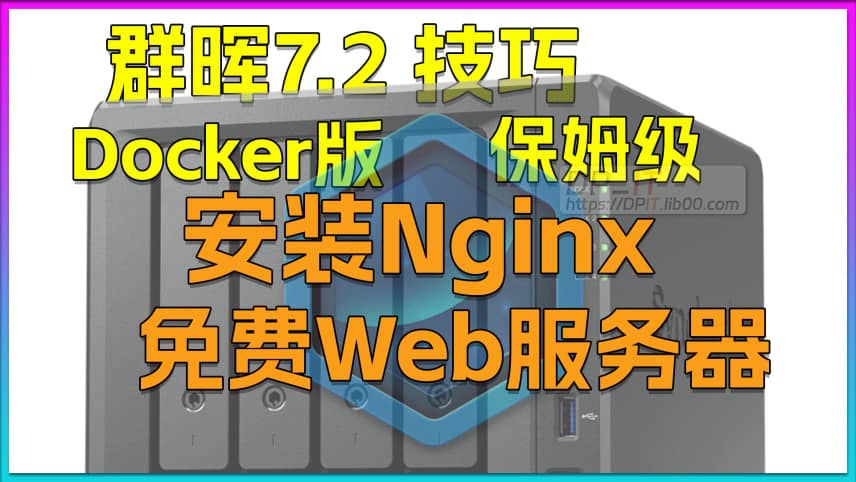
This video is a comprehensive technical tutorial that provides step-by-step instructions on installing Docker-based Nginx web server on Synology NAS 7.2.2. Content creator DP covers the complete workflow from resource downloading, file configuration to SSL certificate deployment, making it ideal for users wanting to leverage their NAS for personal web hosting.
---
## 🎯 Core Content
**Why Deploy Nginx on NAS?**
- NAS devices typically run 24/7, naturally suitable as web servers
- Nginx is an industry-standard high-performance web server
- Docker deployment offers greater flexibility and security
**Main Operational Steps:**
1. **Resource Preparation**
- Download required files from author's resource site (dpit.live00.com)
- Two image formats available: uncompressed (186MB) and compressed (67MB)
- Download configuration files and sample HTML files
2. **Directory Structure Setup**
- Create image upload directory (e.g., docker/image)
- Establish web root directory (e.g., work/webroot)
- Create Nginx configuration structure:
- nginx_1.27.3/conf (configuration files)
- nginx_1.27.3/logs (log files)
- nginx_1.27.3/ssl (SSL certificates)
3. **Docker Image Import**
- Upload image files via File Station
- Import image into Docker environment using Container Manager
4. **Network Configuration (Virtual Network Isolation)**
- Create dedicated Docker virtual network (172.18.0.0 subnet)
- Avoid conflicts with default bridge network (172.17.0.0)
- Assign fixed IP address to Nginx container for inter-service communication
5. **Container Deployment & Configuration**
- Configure port mapping (HTTP: 55201, HTTPS: 55202)
- Mount 5 critical directories to container
- Set timezone to Asia/Shanghai
- Configure auto-restart policy
6. **HTTPS Security Setup**
- Deploy SSL certificates for encrypted access
- Modify Nginx configuration to add SSL support
- Separate HTTP and HTTPS logs for better management
- Test local HTTPS access configuration
7. **External Access Configuration**
- Router port forwarding setup
- DDNS domain binding (IPv4)
- Enable domain-based access to personal web server
---
## 💡 Technical Highlights
- **AI-Assisted Development**: Utilize AI to generate sample HTML and Nginx configuration files
- **Dual Teaching Approach**: Explains both Docker command-line operations and GUI configuration
- **Security Considerations**: Virtual network isolation, SSL certificate deployment, high-port usage
- **Practical Demonstration**: Shows how to edit files online and view real-time effects
- **Configuration Deep-Dive**: Line-by-line comparison of HTTP vs HTTPS configuration differences
---
## 🔧 Key Configuration Details
**Port Strategy**:
- Recommend using 5-digit high ports (like 55201/55202) to avoid home network restrictions
- Standard ports 80/443 typically blocked by ISPs
**Directory Mapping Logic**:
- NAS physical path → Docker container internal path
- Separate mapping for configuration files, logs, and web content
- Enables direct editing and management on NAS
**Project-Based Management**:
- Each web project corresponds to independent configuration file
- Supports multi-domain, multi-site deployment
- Easy management of multiple projects through Nginx config files
---
## 📚 Use Cases
- Personal blog/website hosting
- Internal web application deployment
- Development and testing environment setup
- Home media server
- Private cloud service frontend
---
## ⚠️ Important Notes
- SSL certificate domain must match access domain
- Nginx container restart required after configuration changes
- IPv4 public IP or IPv6 environment needed for external access
- Basic command-line knowledge recommended for efficiency
---
## 🔜 Coming Next
The author plans to release an advanced Nginx reverse proxy tutorial, including password-protected high-security configurations to further enhance server security.
---
## SEO Keywords
Synology NAS, Docker Nginx, Web Server Setup, Nginx Configuration Tutorial, SSL Certificate Deployment, Reverse Proxy, Home Server, Container Manager, Port Forwarding, DDNS Configuration, Private Cloud Setup