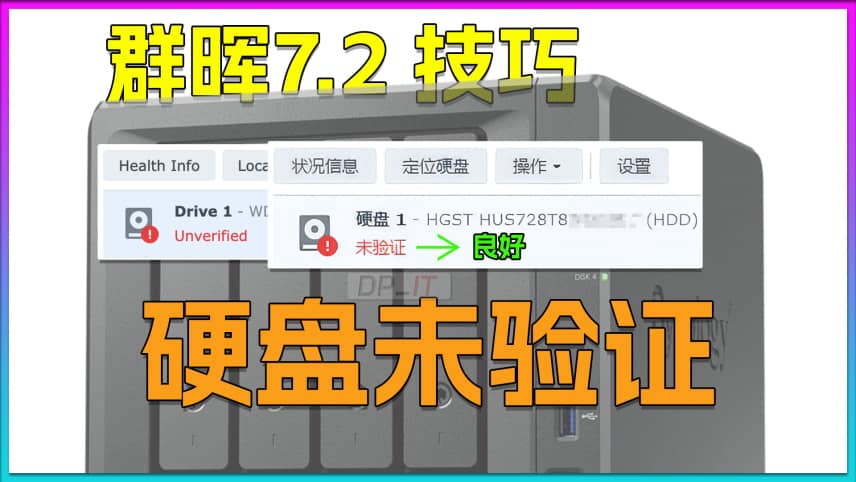
Fix Synology Drive Not Validated Error for DSM 7.2
Support Content
## 1. Introduction
This video demonstrates how to make Synology 7.2 system fixed third-party drives and provides a tutorial on creating storage pools.
> 20250914-DSM 7.2.2-72806 update4 (2025-07-24) Please use version 111 from the network drive (Synology_HDD_db-3.6.111.zip) + Synology_M2_volume-2.1.31.zip (for creating storage pools)
> 20250218-DSM 7.2.2-72806 Please use version 110 from the network drive (Synology_HDD_db-3.6.110.zip)
DSM 7.2.2 users download version 106 from the network drive (Synology_HDD_db-3.5.106.zip), tested by other users, version 106 can run successfully on 7.2.2 system.
Disclaimer: Released with DP_IT videos, free to use, any resale or commercial activities are prohibited. If someone sold this to you, please request a refund. Website: https://dpit.lib00.com
## 2. Resource Links Used in the Video
> 20250621 - Due to continuous link deletions on Baidu Drive, continuously supplementing links is too time-consuming, so it will no longer be used. Thank you for understanding.
> Download addresses for various resource libraries:
Quark Drive: https://pan.quark.cn/s/998bbee185dd
Xunlei Cloud Drive: https://pan.xunlei.com/s/VOTGjBjdjyEZ4GBYLw2FrKn4A1?pwd=8wjd
UC Drive: https://drive.uc.cn/s/16fce40475284
Google drive: https://drive.google.com/drive/folders/1UQ5r9P6j0RHK2kL3kSN0v7MsbMY7UaNm
> Baidu Drive link deleted for the 7th time. If the 8th newly created link is deleted again, I will no longer update it.
## 3. Command List Used in the Video
> Elevate privileges to root user
sudo -i
> Enter script working directory, replace "/volume3/sys_need_keep" with your corresponding directory
cd /volume3/sys_need_keep/Synology_HDD_db-3.5.91
> Grant executable permissions
chmod +x ./syno_hdd_db.sh
> Synology_HDD_db-3.5.91 run command
./syno_hdd_db.sh -fr
> Run command in scheduled tasks, no need to add r, just use -f
/volume3/sys_need_keep/Synology_HDD_db-3.5.91/syno_hdd_db.sh -f
Summary Content
# Fix Synology Drive Not Validated Error for DSM 7.2
## 📋 Problem Overview
In Synology DSM 7.2.1 system, users may encounter a "Not Validated" status for their hard drives. The root cause is that the drives haven't passed Synology's official Hardware Compatibility List (HCL) verification. While this isn't a critical failure and won't stop the system from running, it restricts certain operations and creates inconvenience during daily use.
---
## ⚠️ Problem Symptoms
- **System Notifications**: Control panel displays warnings about drives not passing compatibility checks
- **Storage Manager Display**: In "Storage Manager > HDD/SSD", affected drives show "Not Validated" status
- **Functional Limitations**: Some storage-related operations are restricted
---
## ❌ Not Recommended Solution (Temporary Fix)
A common online method involves modifying system configuration:
1. SSH login and switch to root user
2. Edit `/etc/synoinfo.conf` file
3. Find the `support_disk_compatibility` option
4. Change `yes` to `no`
5. Save and reboot
**Problem**: This solution isn't permanent. Synology periodically updates its drive support list, overwriting this modification each time and causing the issue to recur.
---
## ✅ Recommended Solution: Permanent Fix with Third-Party Tool
### Prerequisites
**Required Files**:
1. **synology-hdd-db** - Third-party tool library (download and extract)
2. **Command text file** - Contains all necessary commands
> 💡 Tip: The video creator provides resource download links in the comment section
### Detailed Steps
**Step 1: Upload Tool Files**
1. Extract the downloaded `synology-hdd-db.zip` file
2. Connect to Synology via FTP protocol (e.g., FileZilla)
3. Upload the extracted files to: `/volume1/@systemNeedKeep/` directory
4. Ensure only necessary executable files remain
**Step 2: SSH Connection and Permission Setup**
```bash
# 1. SSH login to Synology and switch to root user
sudo -i
# 2. Navigate to tool directory
cd /volume1/@systemNeedKeep/
# 3. View files (should display in white initially, indicating no execute permission)
ls
# 4. Grant execute permission
chmod +x synology-hdd-db
# 5. View files again (should turn green, indicating execute permission granted)
ls
# 6. First-time execution
./synology-hdd-db -fr
```
> 📌 Note: For SSH privilege escalation guidance, refer to the creator's previous tutorial videos
**Step 3: Create Boot-Up Auto-Run Task**
To ensure automatic compatibility check bypass after each system restart, set up a triggered task:
1. Open "Control Panel" > "Task Scheduler"
2. Select "Create" > "Triggered Task" > "User-defined script"
3. Configure task parameters:
- **Task Name**: synology-hdd-db (or custom name)
- **User**: root
- **Event**: Boot-up
- **Enabled**: Check the box
4. In "Task Settings" under "Run command", enter:
```bash
/volume1/@systemNeedKeep/synology-hdd-db -f
```
5. Uncheck "Send run details by email" (optional)
6. Click "OK" to save
**Step 4: Reboot and Verify**
```bash
# Reboot Synology system
reboot
```
After reboot, drive status should return to normal, and subsequent system updates won't trigger the "Not Validated" issue.
---
## 🔧 Technical Principle
This solution leverages the compatibility check bypass functionality from Synology's official M.2 storage pool support tool. By automatically running a third-party script at system startup, it continuously disables drive compatibility checks, completely resolving recurring issues.
---
## 💡 Important Notes
- This issue **does not cause data loss or system crashes**
- The solution **does not affect system stability or security**
- Compatible with all DSM 7.2+ versions
- Common issue when using non-officially certified drives
---
## 📌 SEO Keywords
Synology not validated, DSM 7.2 hard drive error, HDD compatibility Synology, synology-hdd-db tool, DSM storage issues, Synology SSH fix, hard drive validation error, Synology HCL bypass, DSM 7.2 troubleshooting
Related Contents
Synology DSM Tip: Easily Chang...
Duration: 00:00 | DPSynology Office Quick Start Gu...
Duration: 00:00 | DPView HDD SMART Info on Synolog...
Duration: 12:19 | DPCheck Real CPU Temperature via...
Duration: 08:06 | DPSynology 7.2 Jellyfin Upgrade ...
Duration: 13:06 | DPDocker Jellyfin Free SSL Certi...
Duration: 14:42 | DPDocker Nginx Free SSL Certific...
Duration: 16:17 | DPSynology NAS Quick DSM SSL Cer...
Duration: 10:50 | DPSynology DSM Built-in Reverse ...
Duration: 03:51 | DPGameSir Nova 2 Moonlight Vibra...
Duration: 07:31 | DPEdit Files in Synology DSM Web...
Duration: 01:43 | DPFree SSL Certificate for Synol...
Duration: 08:52 | DPFree SSL Docker acme.sh: Wildc...
Duration: 11:10 | DP2025 Home Entertainment Upgrad...
Duration: 06:59 | DP2025 Home Network Upgrade Plan
Duration: 06:25 | DPSynology SSH Command Line Tuto...
Duration: 05:29 | DPNginx Proxy Manager on Synolog...
Duration: 14:11 | DPFree Personal AI Hub: Docker L...
Duration: 16:26 | DPSynology DSM Change Login Port...
Duration: 01:23 | DPSynology DSM Global Proxy Setu...
Duration: 01:36 | DPDocker DDNS-Go: Bind IPv4/IPv6...
Duration: 09:43 | DPSynology SMB Protocol Beginner...
Duration: 04:24 | DPNginx Reverse Proxy Basics for...
Duration: 12:20 | DPQuark Drive Cannot Share .tar/...
Duration: 02:00 | DPRecommended
Starsector 0.98 Chinese Versio...
06:40 | 56Starsector Online Tools Website (https://sst.lib00...
Check Real CPU Temperature via...
08:06 | 183How to use the command-line tool sensors to check ...
N5105 Perfect DSM 7.2 Hardware...
15:20 | 126Orico's MetaServer Zero, model ha500, with N5105 C...
Do You Really Need Local DeepS...
08:04 | 58This video discusses whether ordinary users need t...